Problem
If you are working in a team that have the overall responsibility for azure resources. But you also work in a large organization with lot of subscription and a lot of different teams that creates resources in azure. It can be really hard for you to find out who created the resources and who is responsible for it.
This is where tags can be used to easier keep track of resources and who is responsible for them, plus many other possible effects of tags.
There might be situations or organization’s that don’t use tags or have not started to use tags.
This blogpost is about tags and how to add static tags to every resource group in a subscription or subscriptions.
Solution
This solution adds static tags to all resource groups in one or more subscriptions and keeps adding them every day so newly created resource groups also gets the tags.
Example on static tags:
| Tag Key | Value |
|---|---|
| owner | Who is the owner |
| team | what team created this resource |
| createdby | who created it (can be an email) |
| environment | Prod, Dev, Test |
How to create the solution
- Script that goes through/creates the steps 1 to 5 can be found here: Add_rg_aa_rbac.ps1
- Script/json file for the role Tag Creator can be found here: tagcreator.json But remember to change to your management group
- Runbook/script can be found here: set-rg-tags.ps1
Activate Owner role on the subscription where the Automation Account should run on. (Add Tags)
- Create a new resource group
- Create a new Automation Account in the newly created resource group
- Activate System assigned Identity

- Click on Azure role assignments.
- Add RBAC I have created a custom role you can use: Tag Creator see bottom. (But you can use for example Contributor)
You can add the RBAC for the automation account to more subscriptions if needed.
It should look like the image below.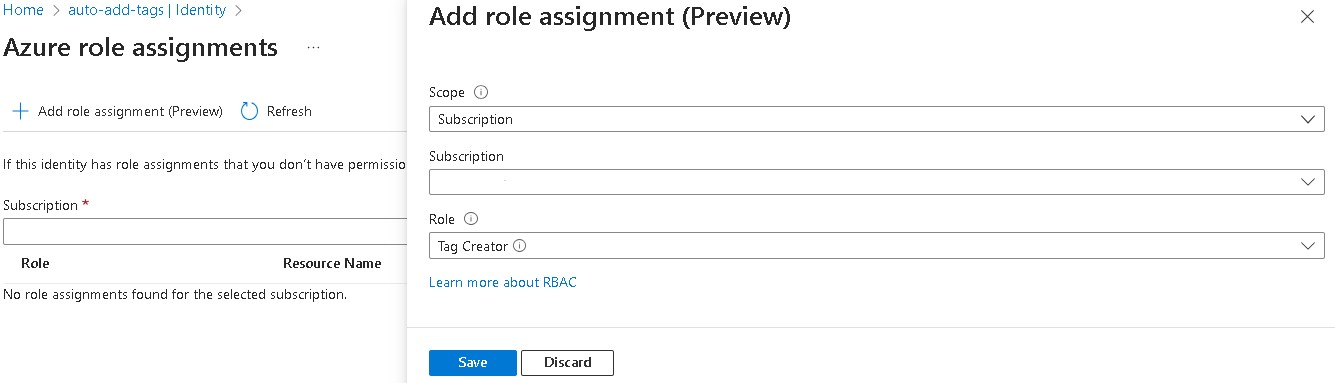
- Now on the Automation Account navigate to Runbooks.
- Click on Create a runbook
- Give the runbook a meaningful name, set Runbook type PowerShell and Runtime version 7.1 (perview) and click Create.
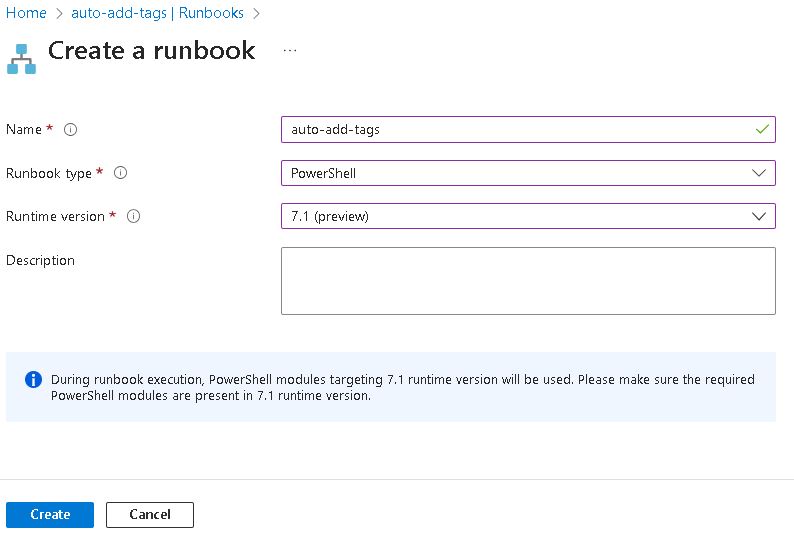
- Now copy the Runbook/script you can se bellow
- Change the tags or add/remove them. I have suggested few tags but change them to your needs.
IT should look something like this: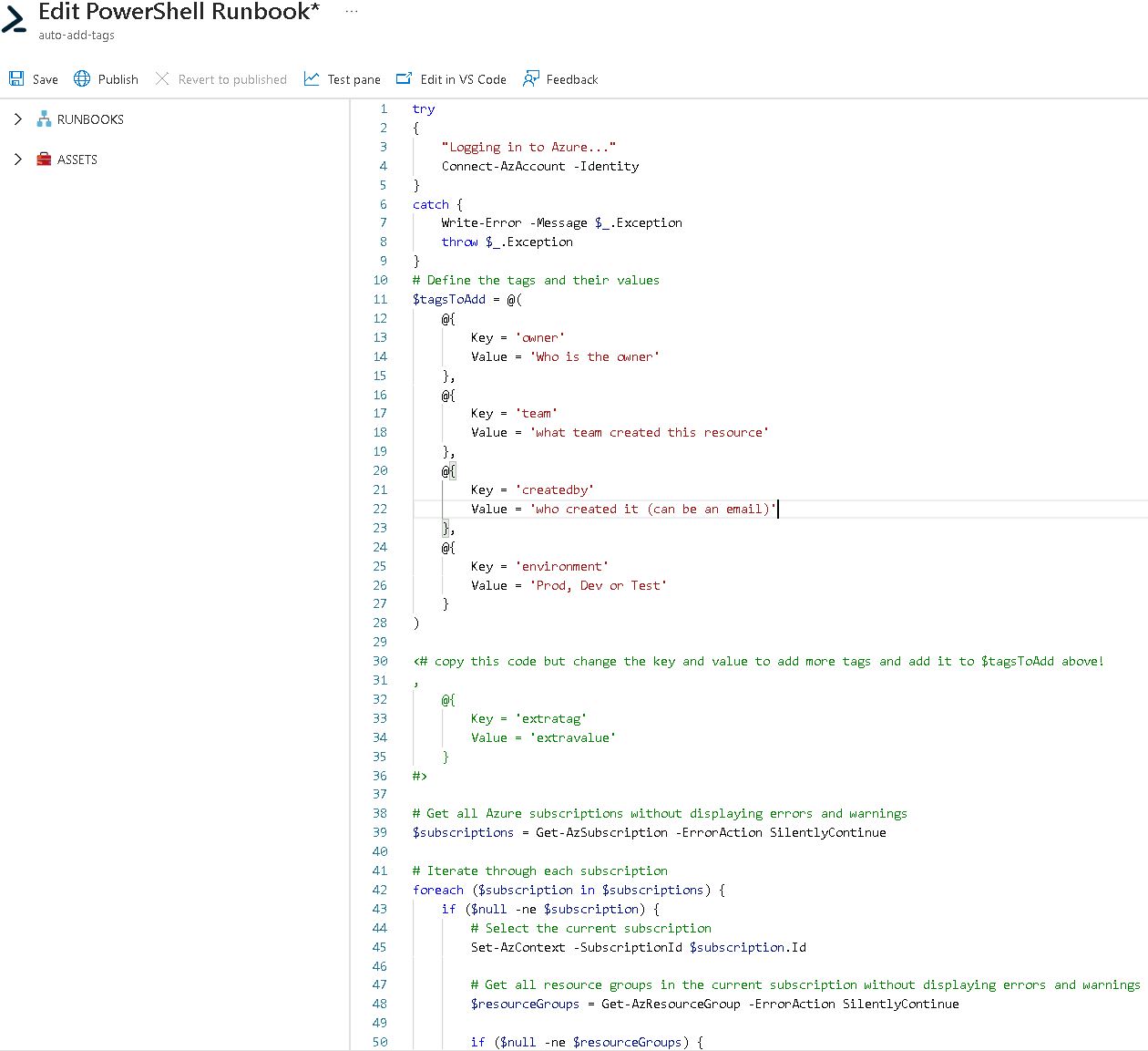
- Now if you want to try run the Runbook/Script you can click on test pane and Start. (This will add all the tags to all resource groups in your subscription)
- If you are satisfied with the test run, then go back to edit the Runbook/script or want to continue click on Publish.
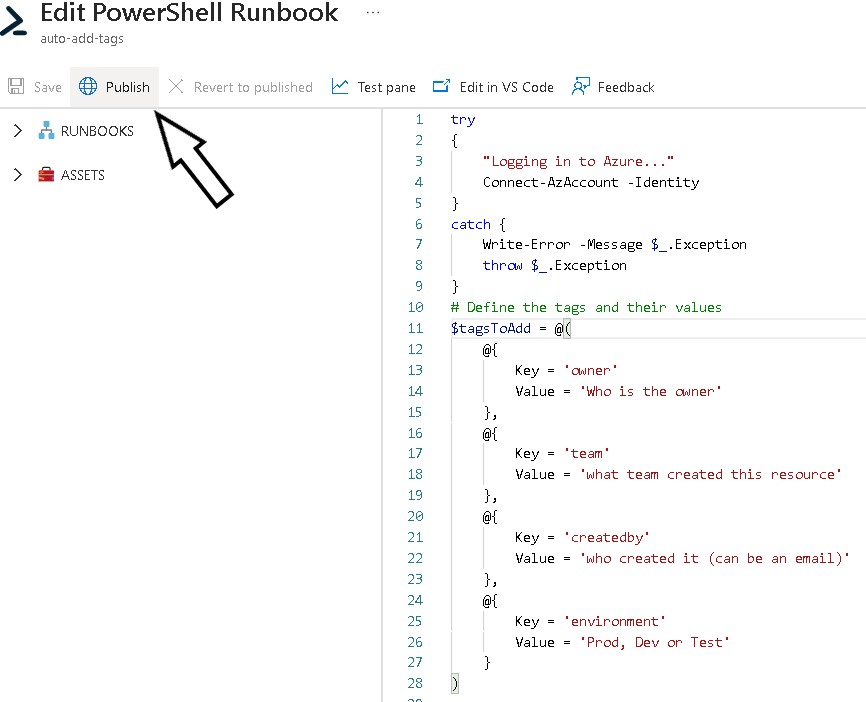
- Now navigate to Schedules, click on Add a schedule.
- Create a Schedule that suits your needs. Below is an example.

Conclusion
Now you have a Runbook/script that adds tags to all resource groups in your subscription and add the tags to new resource groups that are created in the future.
Tag Creator
{
    "properties": {
        "roleName": "Tag Creator",
        "description": "",
        "assignableScopes": [
            "/providers/Microsoft.Management/managementGroups/your-managementGroup-here" //Change to your managementGroup
        ],
        "permissions": [
            {
                "actions": [
                    "Microsoft.Authorization/*/read",
                    "Microsoft.Resources/subscriptions/resourceGroups/read",
                    "Microsoft.Resources/subscriptions/resourceGroups/resources/read",
                    "Microsoft.Resources/subscriptions/resources/read",
                    "Microsoft.Resources/deployments/*",
                    "Microsoft.Insights/alertRules/*",
                    "Microsoft.Support/*",
                    "Microsoft.Resources/tags/*",
                    "Microsoft.Resources/subscriptions/resourceGroups/write"
                ],
                "notActions": [],
                "dataActions": [],
                "notDataActions": []
            }
        ]
    }
}
Runbook/Script
try
{
    "Logging in to Azure..."
    Connect-AzAccount -Identity
}
catch {
    Write-Error -Message $_.Exception
    throw $_.Exception
}
# Define the tags and their values
$tagsToAdd = @(
    @{
        Key = 'owner'
        Value = 'Who is the owner'
    },
    @{
        Key = 'team'
        Value = 'what team created this resource'
    },
    @{
        Key = 'createdby'
        Value = 'who created it (can be an email)'
    },
    @{
        Key = 'environment'
        Value = 'Prod, Dev or Test'
    }
)

<# copy this code but change the key and value to add more tags and add it to $tagsToAdd above!
,
    @{
        Key = 'extratag'
        Value = 'extravalue'
    }
#>

# Get all Azure subscriptions without displaying errors and warnings
$subscriptions = Get-AzSubscription -ErrorAction SilentlyContinue

# Iterate through each subscription
foreach ($subscription in $subscriptions) {
    if ($null -ne $subscription) {
        # Select the current subscription
        Set-AzContext -SubscriptionId $subscription.Id

        # Get all resource groups in the current subscription without displaying errors and warnings
        $resourceGroups = Get-AzResourceGroup -ErrorAction SilentlyContinue

        if ($null -ne $resourceGroups) {
            # Iterate through each resource group
            foreach ($resourceGroup in $resourceGroups) {
                if ($null -ne $resourceGroup) {
                    # Iterate through each tag to add
                    foreach ($tagToAdd in $tagsToAdd) {
                        $tagKey = $tagToAdd.Key
                        $tagValue = $tagToAdd.Value

                        # Check if the tag already exists in the resource group
                        if ($null -ne $resourceGroup.Tags -and -not $resourceGroup.Tags.ContainsKey($tagKey)) {
                            # Add the tag to the resource group
                            $resourceGroup.Tags[$tagKey] = $tagValue

                            # Update the resource group with the new tag without displaying errors and warnings
                            Set-AzResourceGroup -ResourceGroupName $resourceGroup.ResourceGroupName -Tag $resourceGroup.Tags -ErrorAction SilentlyContinue
                        }
                    }
                }
            }
        }
    }
} cloudfriendly